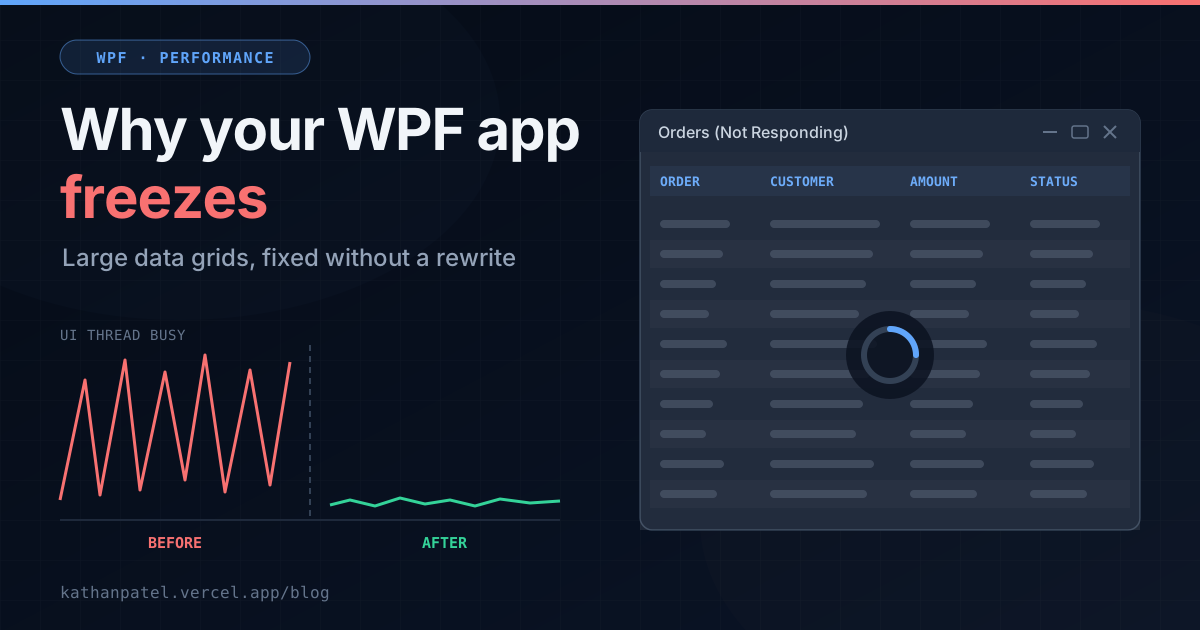
Every business with a WPF desktop app seems to reach the same moment. The app was fine with a few hundred rows. Now it has fifty thousand, and opening a screen means staring at a frozen window with "Not Responding" in the title bar. Users click twice, then restart it. Someone suggests rebuilding the whole thing as a web app.
Don't, at least not for this reason. A freezing grid is one of the most fixable problems in desktop software. I've spent years on WPF apps that show large, fast-changing data, including a trading platform where grids update with live market prices thousands of times a second and still respond instantly. The fixes are well known. This post explains them in plain terms, so you can tell whether your developer is on the right track.
The one thing to understand: WPF has a single UI thread
Everything a user sees and clicks in a WPF app is handled by one thread, the UI thread. It draws the screen, responds to clicks, and runs the code attached to them. While it's busy, nothing else on screen can happen. If it stays busy for more than a few seconds, Windows marks the window "Not Responding".
So a freeze always means the same thing: something is keeping the UI thread busy. Fixing it means finding out what, then moving that work elsewhere or making it smaller. There are five usual suspects.
1. Slow work running on the UI thread
This is the most common cause by far. A button click runs a database query, reads a large file or crunches numbers directly on the UI thread. For one second on a developer's machine, nobody notices. For twenty seconds against a real customer database, the app freezes.
The fix is to run that work in the background and only come back to the UI thread to show the result. Modern C# makes this straightforward with async and await. It's usually the quickest win, and it often fixes most of the complaints on its own.
2. Virtualization switched off by accident
A grid showing 50,000 rows should only create screen elements for the thirty or so rows actually visible, and reuse them as you scroll. That's called virtualization, and WPF grids do it by default. But it's easy to break without noticing: putting the grid inside a scrolling panel, certain layout choices, or turning on grouping can quietly switch it off. The grid then builds all 50,000 rows at once. The app freezes on load and uses far more memory than it should.
Once found, this is a small change, often a few lines in the screen's layout:
<!-- Rows are recycled as the user scrolls instead of created and destroyed.
     The grid must NOT sit inside a ScrollViewer or StackPanel: those give it
     unlimited height, so it treats every row as visible and builds them all. -->
<DataGrid ItemsSource="{Binding Orders}"
          EnableRowVirtualization="True"
          EnableColumnVirtualization="True"
          VirtualizingPanel.VirtualizationMode="Recycling"
          VirtualizingPanel.IsVirtualizingWhenGrouping="True" />
3. Updating the grid one row at a time
When an app adds 10,000 rows to a list one by one, the grid can react 10,000 times: recalculating layout, re-sorting and redrawing on every row. Load them as one batch and the grid reacts once. Commercial grids support this directly. DevExpress, for example, has BeginDataUpdate and EndDataUpdate calls for exactly this purpose. It can be the difference between a screen that takes forty seconds to fill and one that fills in about a second.
4. Data changing faster than anyone can read it
Live-data apps hit this one: trading screens, monitoring dashboards, anything fed by a stream. If every incoming update goes straight to the screen, a burst of a few thousand updates a second buries the UI thread.
The fix I've used on trading grids is to separate "data arriving" from "screen updating". Updates collect in the background, and the screen applies the latest values a few times a second. Nobody can read a price that changes 500 times a second anyway. They can read one that refreshes ten times a second, and the app stays responsive.
// Ticks arrive on background threads, as fast as the feed sends them.
// Only the latest price per instrument is kept; older ones are replaced.
private readonly ConcurrentDictionary<string, decimal> _pending = new();

public void OnTick(string symbol, decimal price) => _pending[symbol] = price;

// The screen is updated ten times a second, in one batch, on the UI thread.
private void StartUiRefresh()
{
    var timer = new DispatcherTimer(DispatcherPriority.Background)
    {
        Interval = TimeSpan.FromMilliseconds(100)
    };
    timer.Tick += (_, _) =>
    {
        foreach (var symbol in _pending.Keys)
        {
            if (_pending.TryRemove(symbol, out var price) &&
                _rowsBySymbol.TryGetValue(symbol, out var row))
            {
                row.Price = price;  // raises PropertyChanged; one cell redraws
            }
        }
    };
    timer.Start();
}
5. Cells that are too heavy
Each cell in a grid is built from screen elements. A plain text cell needs a handful. A cell with custom colours, icons, triggers and formatting logic can need dozens. Multiply that by every visible row and column and scrolling gets sluggish. Simplifying cell templates, or switching on the grid's lightweight rendering mode (DevExpress and other vendors provide one), often makes scrolling smooth again with no visible change for users.
"It gets slower the longer it runs"
That's a different problem: a memory leak. In WPF the usual causes are screens that subscribe to events and never unsubscribe, so closed windows stay in memory, and data bindings to objects that don't support change notification, which WPF can hold on to indefinitely. Users describe it as "fast in the morning, unusable by the afternoon". The tell-tale sign is memory use in Task Manager that only ever goes up.
It's fixed the same way as everything else here: measure, find the objects that shouldn't still exist, and fix the code that's keeping them alive.
Measure first, then fix
A good developer won't guess which of these you have. They'll profile the app with Visual Studio's performance tools or PerfView, which show exactly what the UI thread is doing during a freeze, and fix the biggest cause first. One or two causes usually account for nearly all of the pain.
If someone proposes a fix before measuring anything, ask them what they're basing it on.— Kathan N. Patel
Do you need to rewrite it as a web app?
Not to fix freezing. WPF is fully supported on modern .NET, including .NET 10, and it's still one of the best choices for dense, data-heavy desktop work. That's why trading desks, labs and control rooms still use it.
There can be good reasons to move to the web: remote access, no installs, mobile users. Performance isn't one of them. A web version of a badly built grid freezes too; it just freezes in a browser tab. Fix the cause first, then choose the platform for business reasons.
What a fix usually looks like
• Diagnosis: a few days of profiling on the slowest screens, ending with a written list of causes in priority order.
• Fixes: typically one to four weeks, depending on how many screens are affected and how the app is structured.
• Result: screens that open in a second or two, stay responsive while loading, and don't slow down over the day.
None of this changes how the app looks. Users just notice that it has stopped fighting them. For an example of a responsive, keyboard-driven WPF grid, see my open-source cohort analysis matrix.
If your WPF app freezes and you'd like to know why, send me a short description: which screen, how much data, and what happens. That's often enough to point to the likely cause before anyone opens the code.