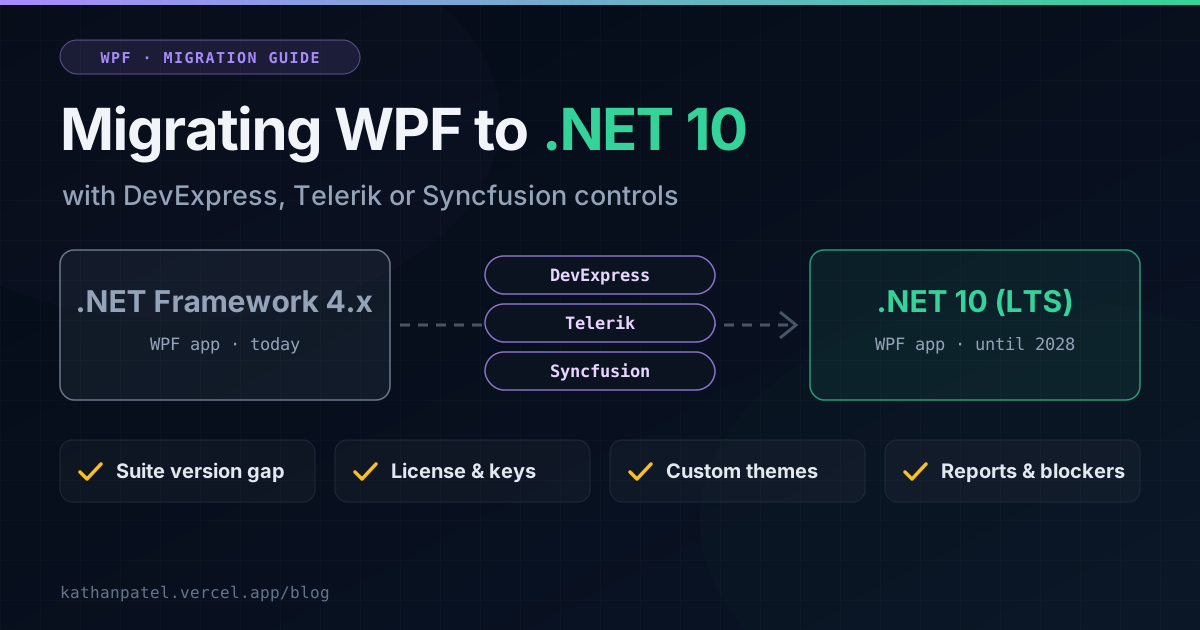
If your company runs a WPF desktop app built in the 2010s, it almost certainly runs on .NET Framework, and it almost certainly uses a commercial control suite. DevExpress, Telerik and Syncfusion are the big three. Their grids, charts, schedulers and themes are why the app looks and works the way it does.
In my experience, they're also the single biggest factor in how a migration to modern .NET goes. The WPF part is well understood. The control suite is where the surprises, the extra cost and the delays come from.
I've worked on WPF products built on all three: a trading platform on DevExpress, an analytics tool using Syncfusion and SciChart, and a healthcare records app on Telerik. So this is written from the inside, for the person deciding whether and how to migrate rather than the person typing the code.
First, the good news about WPF itself
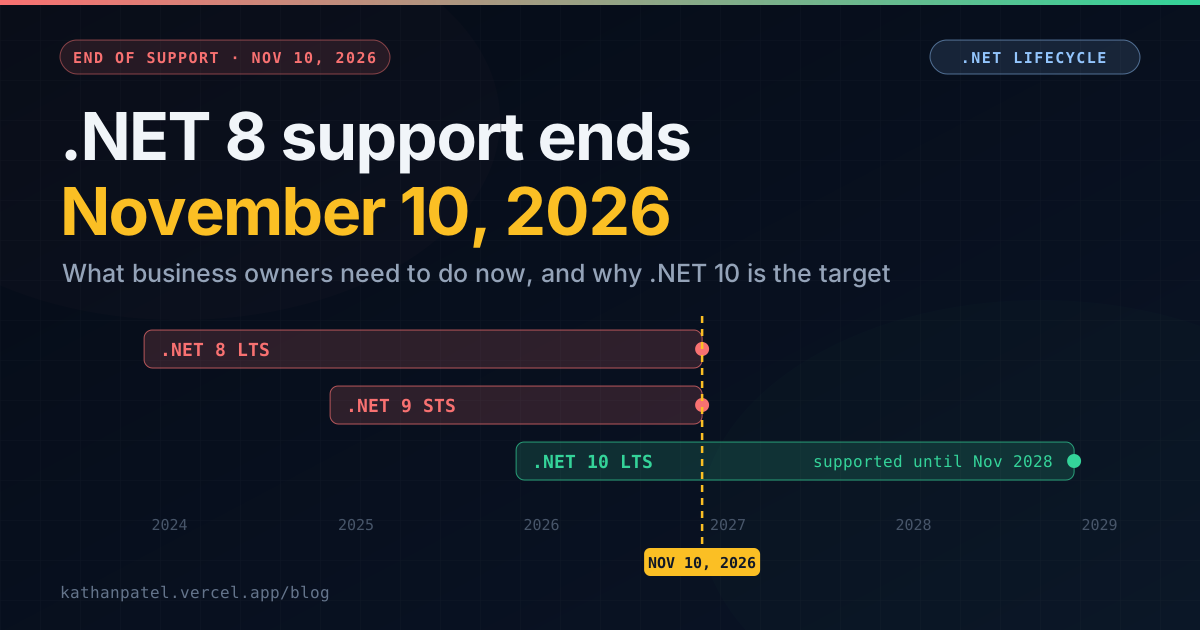
WPF is fully supported on .NET 10 on Windows. Your app stays a Windows desktop app, looks the same to users and keeps its XAML screens. Moving to .NET 10 gets you a runtime supported until November 2028, better performance in many apps, and access to current libraries that no longer support .NET Framework.
.NET Framework 4.8 isn't going away yet; it's still supported as part of Windows. But it gets no new features, the libraries around it are moving on, and fewer developers want to work on it each year.
Microsoft's upgrade tooling converts project files to the modern format and retargets them. That part is quick. What it can't do is decide what to do about the pieces with no .NET 10 equivalent, and the control suite is usually first on that list.
Four control-suite questions to answer before you start
1. Which version are you on, and how far is it from current?
Check the control suite version in your project. If it's recent, the move is usually a package swap. If it's many years old, which in legacy apps it often is, you're facing a jump across several major versions, with renamed properties, removed features and changed behaviour along the way. That jump is a project in itself, and it's often bigger than the .NET migration.
2. Is your license current?
All three vendors sell subscriptions: you can keep using the version you bought, but you need an active subscription to download newer ones. If yours lapsed years ago, you'll need to renew to get a version that supports .NET 10. That belongs in the budget from day one, not as a surprise in week three.
Newer versions of these suites also expect a license key during the build or at startup, a step old projects never had. It's easy to set up, but your build server needs the key too. A missing key is a common reason a freshly migrated app suddenly shows a trial-version banner.
3. How customised are the themes and templates?
Apps that use a vendor theme as-is migrate cleanly. Apps that heavily customised a theme, or rewrote control templates to change how grids and editors look, need each customisation checked against the new version. Themes get restyled and retired over the years. This is the most common source of "it works, but it looks wrong" after a migration.
4. Is the rest of the app ready?
The control suite is usually the biggest item, but check these at the same time:
• Reporting tools. Older reporting libraries, with Crystal Reports the usual example, were built for .NET Framework. Check the current status of yours. It may need replacing, often with your control suite's own reporting tool.
• Old saving and copying code. BinaryFormatter, which older apps often used to save settings or copy objects, no longer works in modern .NET and has to be replaced.
• Service calls. Apps that call WCF services can keep doing so, because the client side has a supported path on modern .NET. Hosting WCF services is a separate problem with its own plan.
• Deployment. ClickOnce, MSI installers and auto-update tools all need checking against the new build output.
What the migration itself looks like
This order keeps the app shippable throughout:
1. Inventory. List every project, every package and every control-suite component actually in use: grids, charts, editors, reports. That last part matters, because an app may reference the whole suite and use a tenth of it.
2. Upgrade the control suite first, while still on .NET Framework. If you're several versions behind and the current version still supports your .NET Framework version (it usually does), upgrade and ship that first. You're changing one thing at a time, so any visual or behaviour change clearly comes from the suite, not the runtime.
3. Move shared libraries next. Business logic and data-access projects can target both frameworks at once, so the old app and the new one share the same code during the transition.
4. Move the WPF project. Switch it to .NET 10, fix what breaks, and replace the few pieces with no modern equivalent.
5. Check every screen. Compare old and new side by side: layouts, themes, grid behaviour, printing and exports. It's slow, unglamorous work, and it's what separates a migration users never notice from one they complain about.
<!-- A shared business-logic project, built for both frameworks during the
     transition. The old app and the new one run exactly the same code. -->
<Project Sdk="Microsoft.NET.Sdk">
  <PropertyGroup>
    <TargetFrameworks>net48;net10.0</TargetFrameworks>
  </PropertyGroup>
</Project>

<!-- The WPF app itself, once moved -->
<Project Sdk="Microsoft.NET.Sdk">
  <PropertyGroup>
    <OutputType>WinExe</OutputType>
    <TargetFramework>net10.0-windows</TargetFramework>
    <UseWPF>true</UseWPF>
  </PropertyGroup>
</Project>
How long does it take?
The gap between your control suite version and the current one usually matters more than the size of the app:
• Current suite version, standard themes, few other blockers: often a few weeks for a mid-sized app, most of it testing.
• Several major versions behind, customised themes: expect the suite upgrade alone to take several weeks before the .NET move starts.
• Old reporting tools or other components with no modern version: add the time to replace them, which depends on how many reports or screens rely on them.
A short assessment up front, a few days going through the actual code, turns those ranges into a real plan and a fixed quote.
The WPF migration is rarely what decides the budget. The control suite version gap is.— Kathan N. Patel
Should you move to the web instead?
Sometimes. If your users need to work from anywhere, on any device, without installing anything, a web app is worth considering. Blazor is the natural choice if your team knows .NET, and I've covered that path in WPF to Blazor migration.
But if the app is a dense, data-heavy tool used by people at their desks, WPF on .NET 10 is still a strong choice. The migration keeps what works, costs a fraction of a rewrite, and gives you a supported platform for years. If you're unsure, this rewrite-or-refactor framework will help you decide.
If you have a WPF app on DevExpress, Telerik or Syncfusion and want to know what moving it involves, send me the basics: the .NET Framework version, the control suite and its version, and roughly how many screens. That's usually enough for a first view of the effort. And if the main complaint is speed rather than age, start with why WPF apps freeze with large data grids.